📚 Export Features Guide
Save Copilot to Word, PDF, Google Docs, Notion, Markdown & Print
Introduction
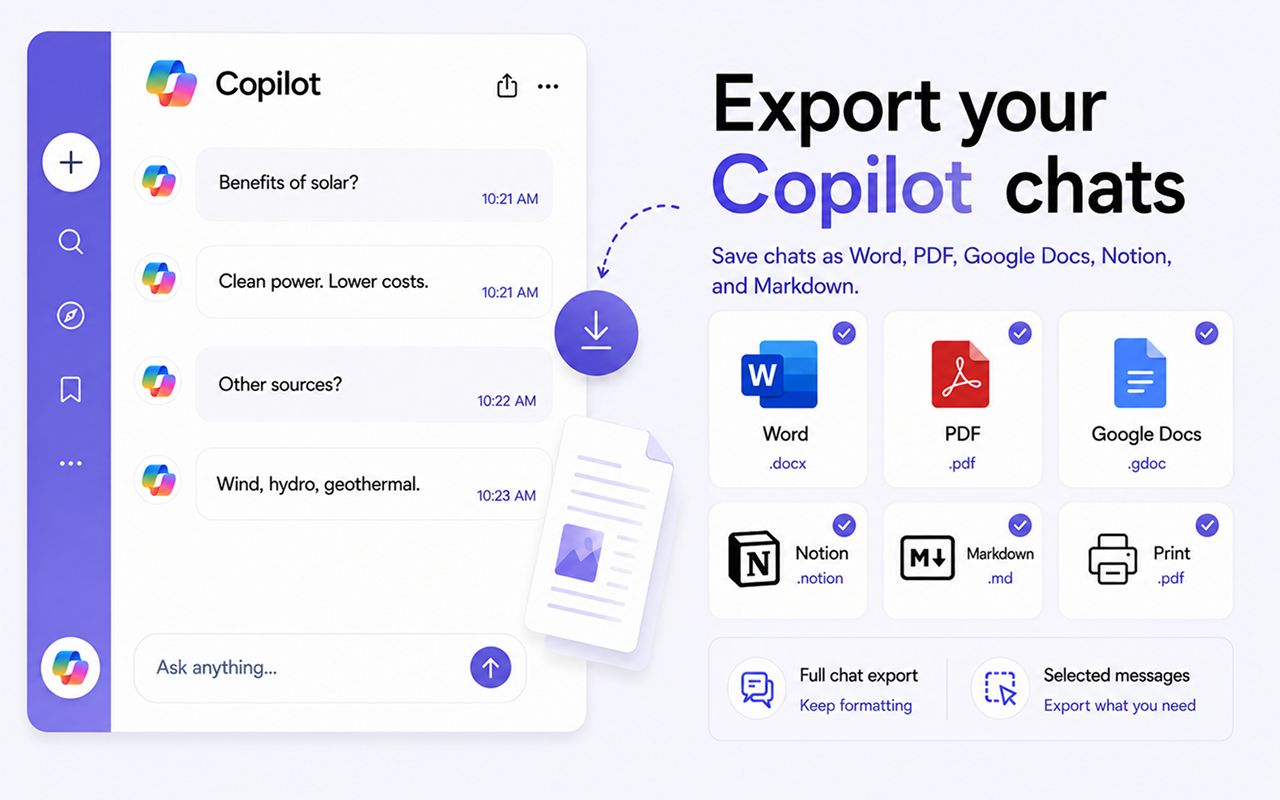
Export your Copilot conversations — whole chats or single replies — to Word, PDF, Google Docs, Notion, Markdown or Print, with options to keep only the answers, only your prompts, or both.
✨ Key Features
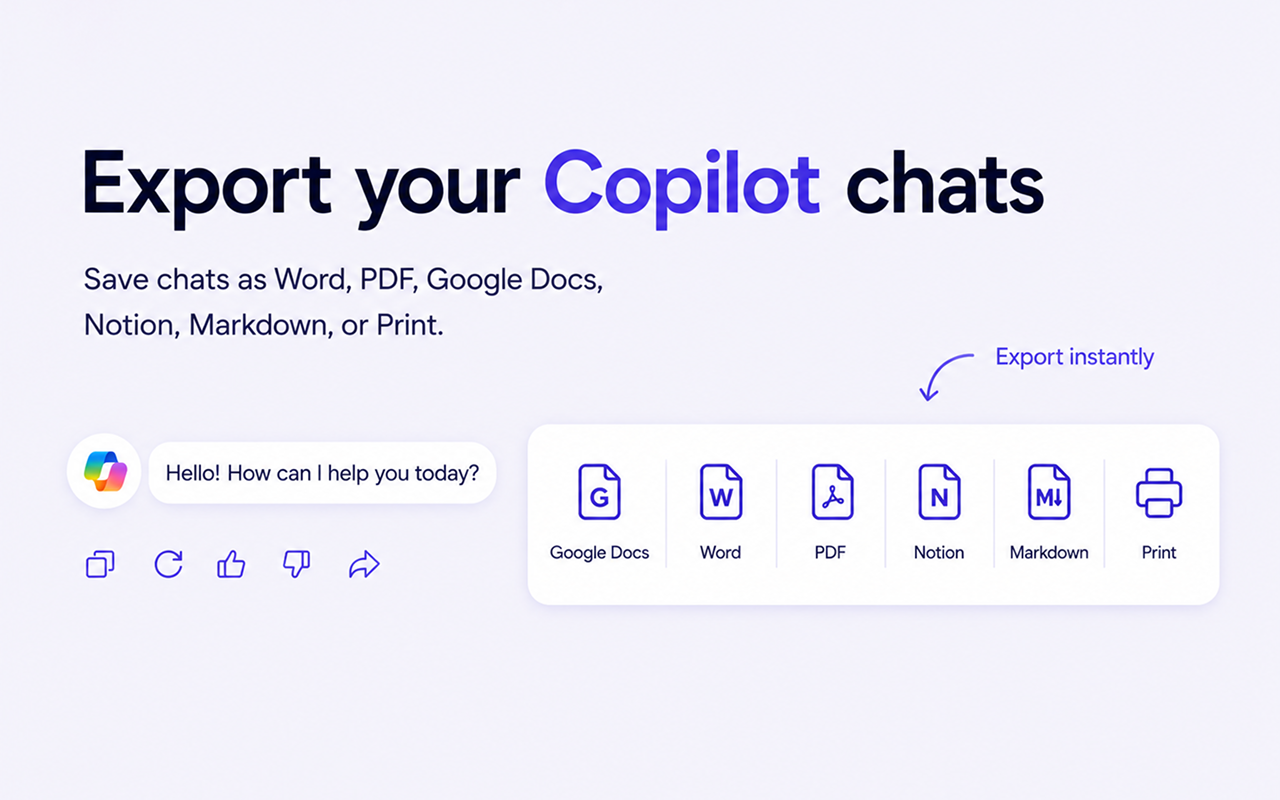
Export Copilot conversations to multiple formats
6 Export Formats
Word, PDF, Google Docs, Notion, Markdown and Print — one click each.
Content Filtering
Keep answers only, prompts only, or the full conversation.
Selective Export
Export the whole chat or just one response.
Saved Settings
Your preferences are remembered for every future export.
⚙️ Export Modes
Pick how much of the conversation to include. Settings are saved automatically.
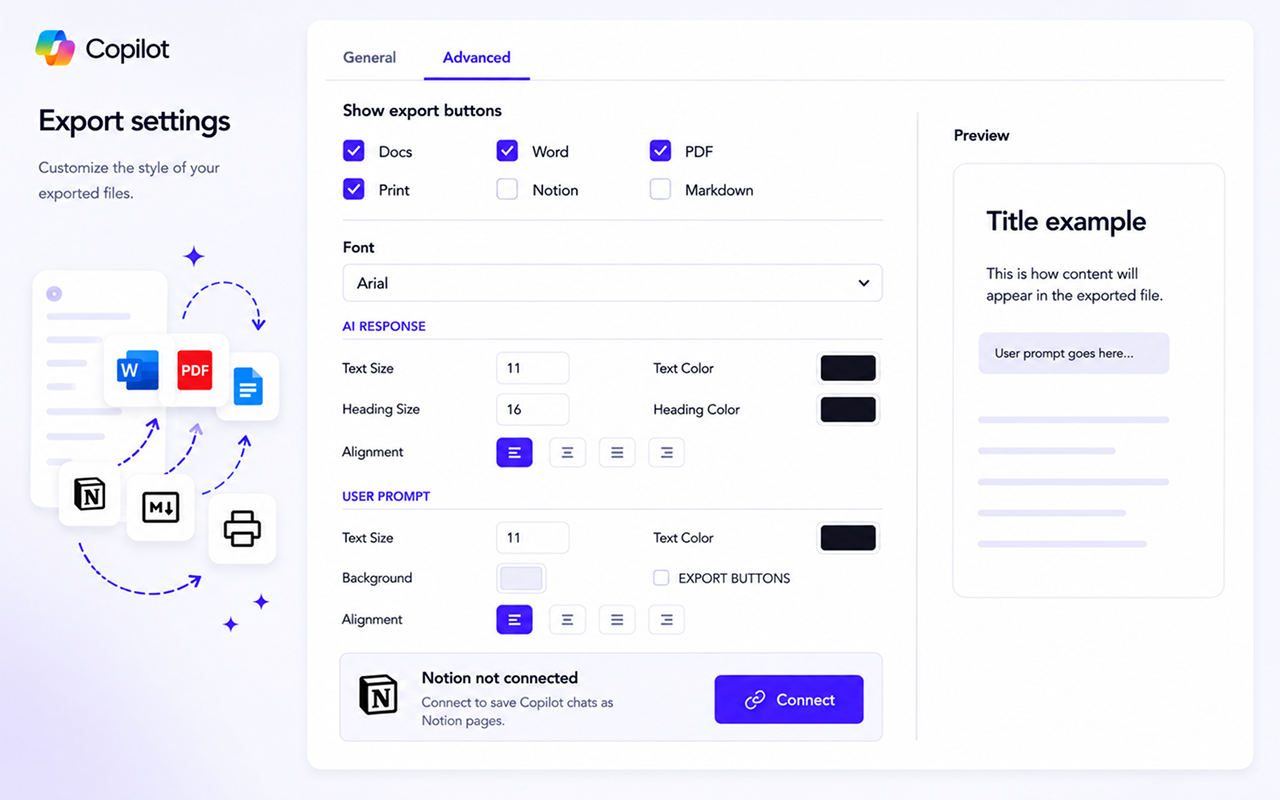
Configure your export settings
Answers only
Full conversation, keeping only Copilot's replies — your prompts are removed.
Prompts only
Full conversation, keeping only your questions — Copilot's replies are removed.
Single answer
Export one Copilot reply on its own, without the question before it.
Everything
Leave all options off to export prompts and answers together.
📄 Supported Formats
Microsoft Word (.docx)
Fully editable documents for formatting, sharing and Office/Google Docs use.
Fixed layout that looks identical everywhere — ideal for printing and archiving.
Google Docs
Saved straight to your Google Drive for cloud backup and collaborative editing.
Markdown (.md)
Version-control-friendly plain text for GitHub, Obsidian, Logseq and static site generators.
Opens the browser print dialog laid out like the PDF — print on paper or "Save as PDF", no download needed.
Notion
Pushes a conversation into a Notion database — headings, lists, code, tables and inline math kept as native blocks. One-time setup →
🔗 Notion Setup
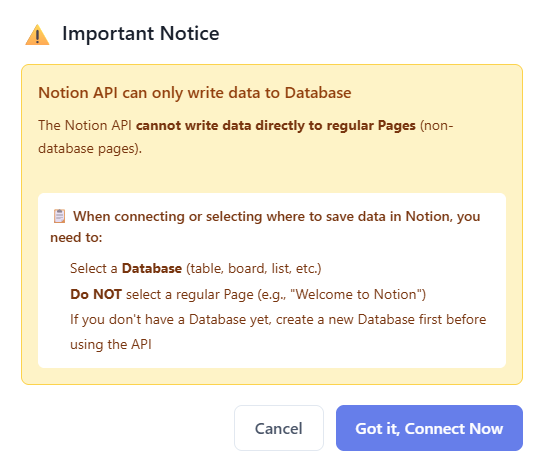
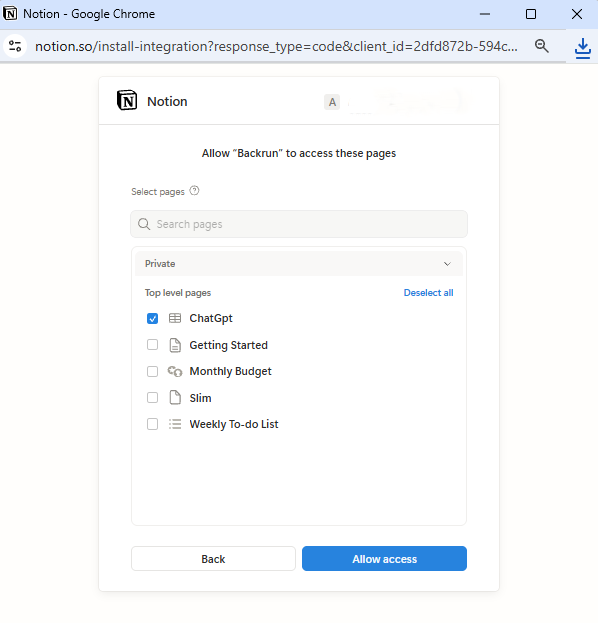
Notion exports need a one-time OAuth connection. The Notion API can only write into databases, so share at least one during setup.
1. Connect
- Open the extension Settings (⚙️) → Advanced tab
- On the "Notion not connected" card, click Connect
2. Share a database (not a page)
- On the OAuth screen, pick at least one database (table, board, list, gallery or calendar)
- Plain pages like "Welcome to Notion" won't work — the API can't write into them
- No database yet? Create one in Notion first, then come back
3. Choose a default & export
- Pick the default database from the dropdown on the card
- Click Export to Notion on any conversation or message
- Add more databases: use the link icon (🔗) in settings — no need to disconnect
- Switch default: just pick another from the dropdown
- Disconnect anytime: use the unlink icon; tokens are removed from your browser
🎨 Style Settings
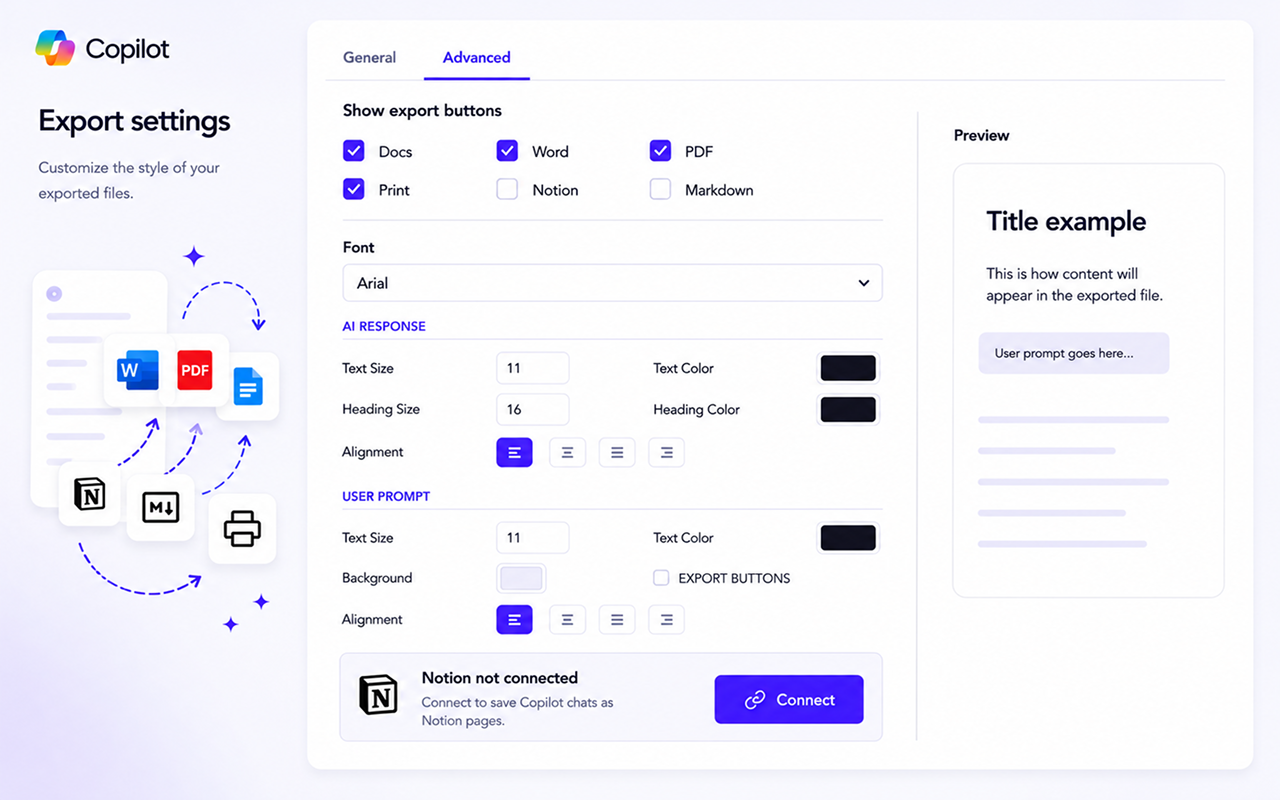
Customize the look of your exported files
Button Visibility
Show only the format buttons you actually use on the Copilot toolbar.
Export buttons User Prompt
Inject the same export buttons (Word, PDF, Docs, Notion, Markdown, Print) next to your prompt's Edit/Copy toolbar so you can export just one question. Off by default.
Fonts & Colors
Set font family, text/heading sizes and custom colors for text, headings and prompts.
Text Alignment
Left, center, right or justify for the whole document.
🔑 License Activation
Activate in 3 steps
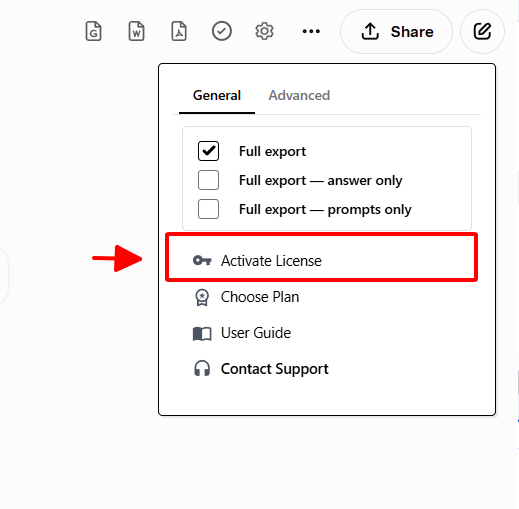
- Open Copilot and click the license icon (🔑) on the extension toolbar
- Paste the license key from your purchase email (no extra spaces)
- Click Activate — a success message confirms it
- 1 license = 1 device. Remove it from one device to use it on another.
- Your key is stored locally in your browser — we never see it.
- Stay online during activation.
- Trouble? Email nuinguyen01bv@gmail.com or visit Contact Support.
🚀 Quota & Tracking
Free Plan
Monthly quota with separate counters for full-conversation and single-response exports. Resets at the start of each month.
Premium Plan
Unlimited exports across all formats, on multiple devices with one license.
📖 Quick Start
- Open a Copilot conversation in your browser
- (Optional) Open Settings (⚙️) and pick an export mode
- Click a format button (Word, PDF, Google Docs, Notion, Markdown, Print) on the toolbar — or next to a single message
- Your file is generated using the saved settings
💼 Use Cases
Answer-only document
Enable Answers only → export the full chat to Word.
Save one reply
Enable Single answer → export that specific response.
Collect your questions
Enable Prompts only → export the full chat.
Archive for the long term
Export to PDF with your preferred filter.
Notion knowledge base
Connect Notion → Export to Notion; math, tables and code are preserved.
Version-control research
Export to Markdown and commit it alongside your code.
💳 Pricing
Choose a plan
Free has monthly limits; paid plans are unlimited. See current prices.
Free
- Limited exports / month
- All 6 formats
Monthly
- Unlimited exports
- All 6 formats
Yearly
- ~$6.58/mo
- Save $41 vs monthly
Email: nuinguyen01bv@gmail.com · Contact support
❓ FAQ
Are settings saved automatically?
Yes — they apply to every future export until you change them, across all conversations.
Can I export both questions and answers?
Yes — leave all export modes off and the file includes both.
What if I hit the free limit?
Wait for next month's reset, or upgrade for unlimited exports. See Pricing.
Can I use it on multiple devices?
Yes, with a paid license (1 license = 1 device). Remove it from one device to use it on another.
Is formatting preserved?
Yes — code blocks, bold/italic, lists and tables carry over to all formats. Notion also keeps inline math (LaTeX) as equation blocks.
How do I connect Notion?
Settings → Advanced → Connect, then share at least one database (not a page). Full steps in Notion Setup.
Why does Notion need a database?
The Notion API can only write into databases. Sharing only plain pages leaves the dropdown empty.
Where do I get support?
Email nuinguyen01bv@gmail.com or visit Contact Support.